office guide / office 2019
Installation and activation of Office 2019
Once you obtain a key for Office 2019 you can verify it on the Microsoft website, and after verification it will provide you with the installation files.
Go to setup.office.com and sign in to your Microsoft account. If you do not have one, you can create a new account there.
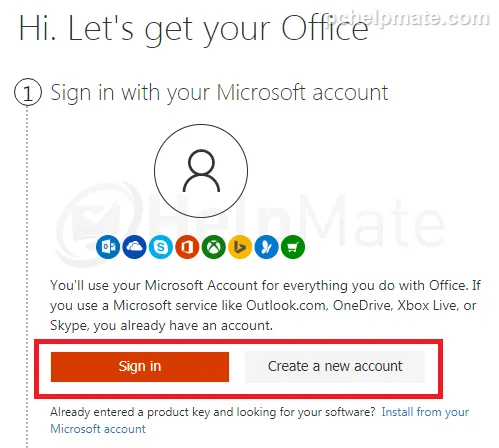
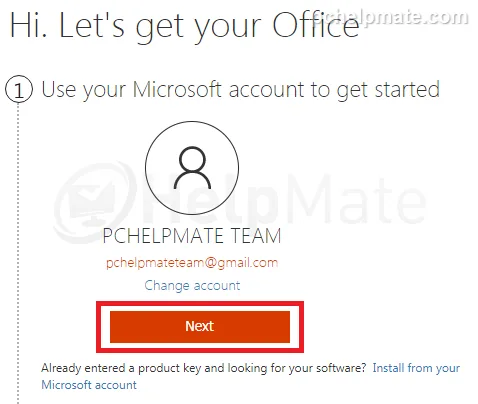
After you sign in you can continue to step 2 by clicking “Next”.
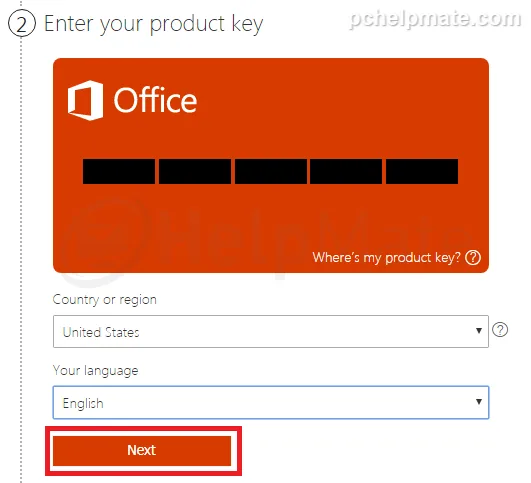
Now enter your Office 2019 product key.
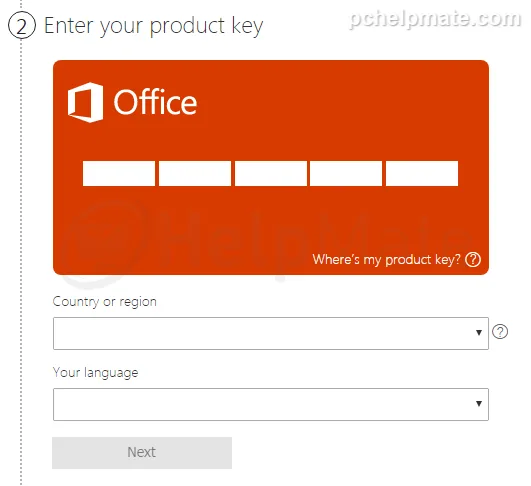
After the key is successfully verified you can choose your country and language, then continue to step 3.
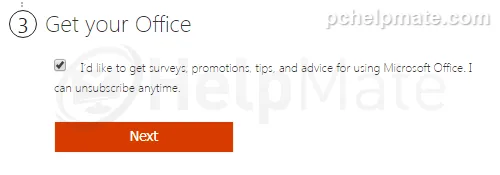
Check whether or not you want to receive emails from Microsoft and click “Next”.
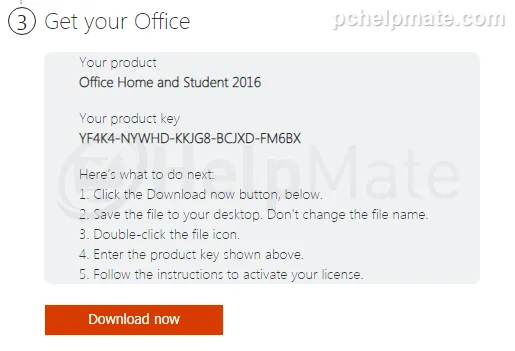
Now you will be presented with information about the installed key and a download link. Click on the “Download” button to download an online installer.
After the file is downloaded, run it to start the installation.
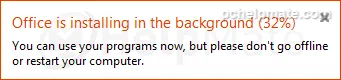
Office will install in the background, so wait until it is finished.
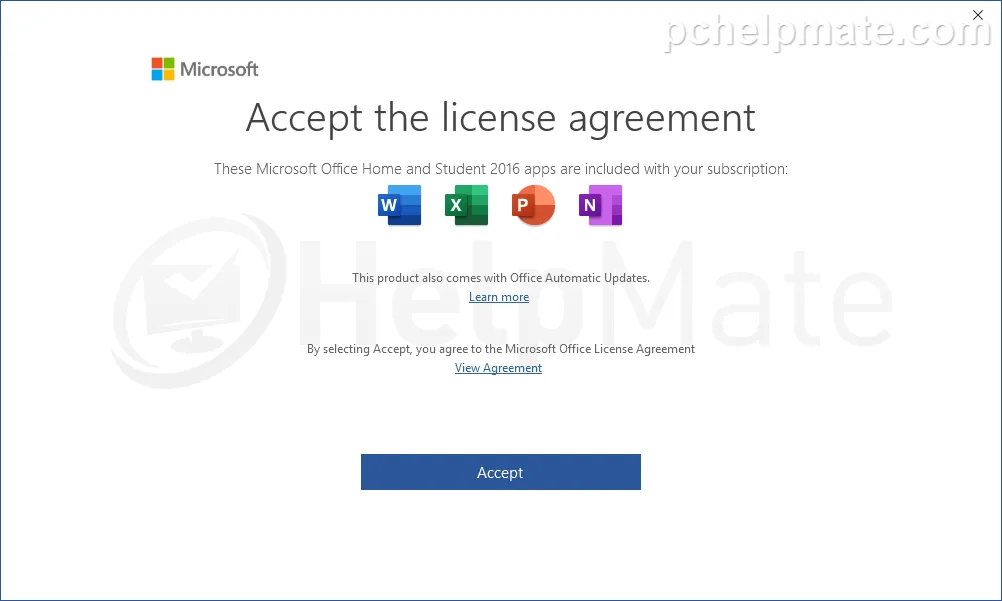
Now you can open any Office program (for example Word). You will be asked to accept the license terms.
After accepting the terms you will be presented with the activation window; try online activation first.
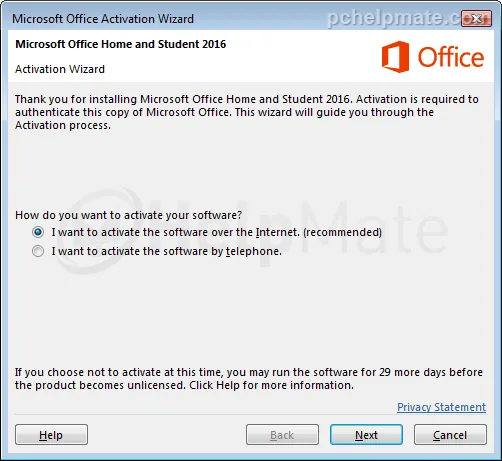
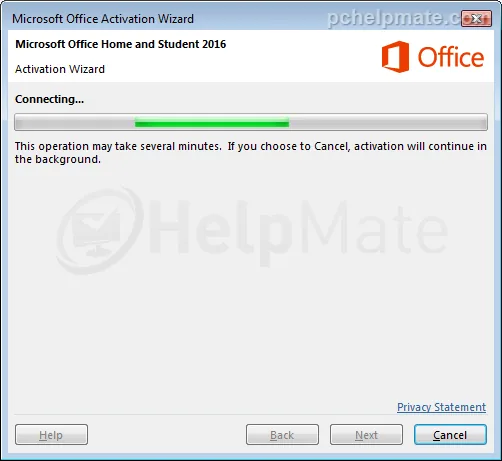
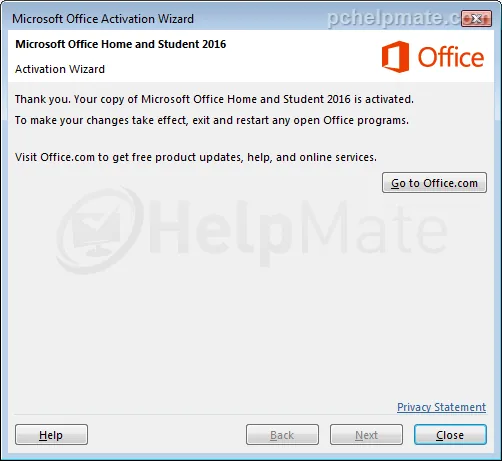
Activation successful.
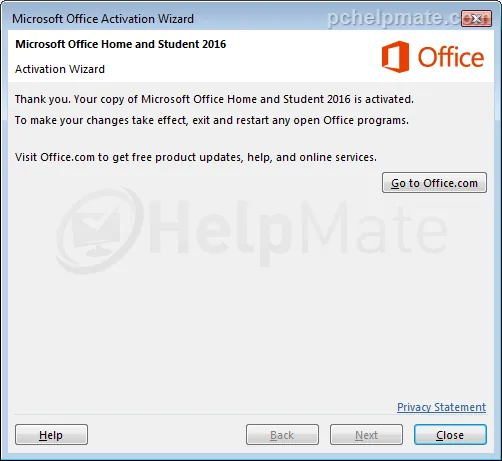
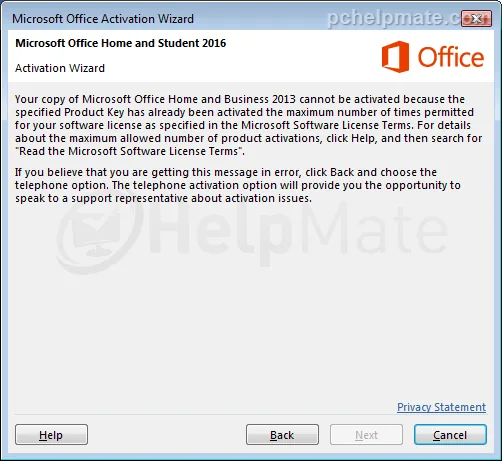
If you see this window instead, you need to perform a phone activation. Please click on “back” and continue to the next step.
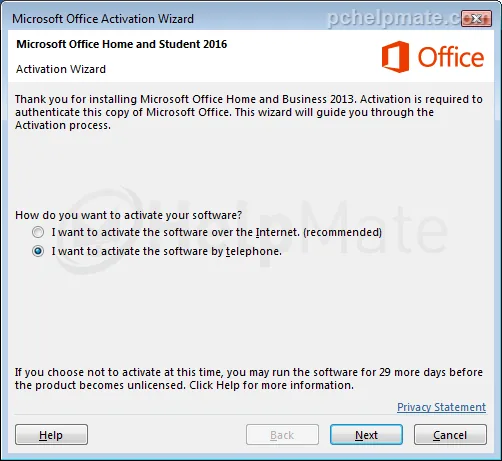
Now choose the phone activation option and click “Next”.
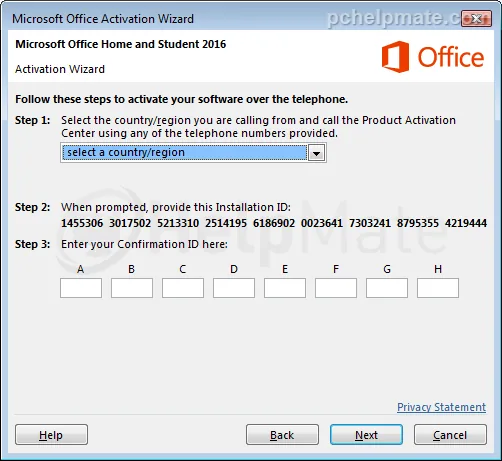
Now choose your country, call the provided number and follow the steps to the point where you enter the installation ID and receive the confirmation ID, which you put into boxes A-H.
If you see a message about phone activation being no longer supported, disregard it; this message is displayed to everyone who is not an Office 365 subscriber. The phone number can be found here on the official Microsoft website.
After typing in the confirmation ID from Microsoft, hit Next. The product key will be verified and that’s it: Office is successfully activated and ready to use.